INDUSTRY:
Public Utilities
CLIENT:
TXU Energy
TXU Autopay
55%
90%
About.
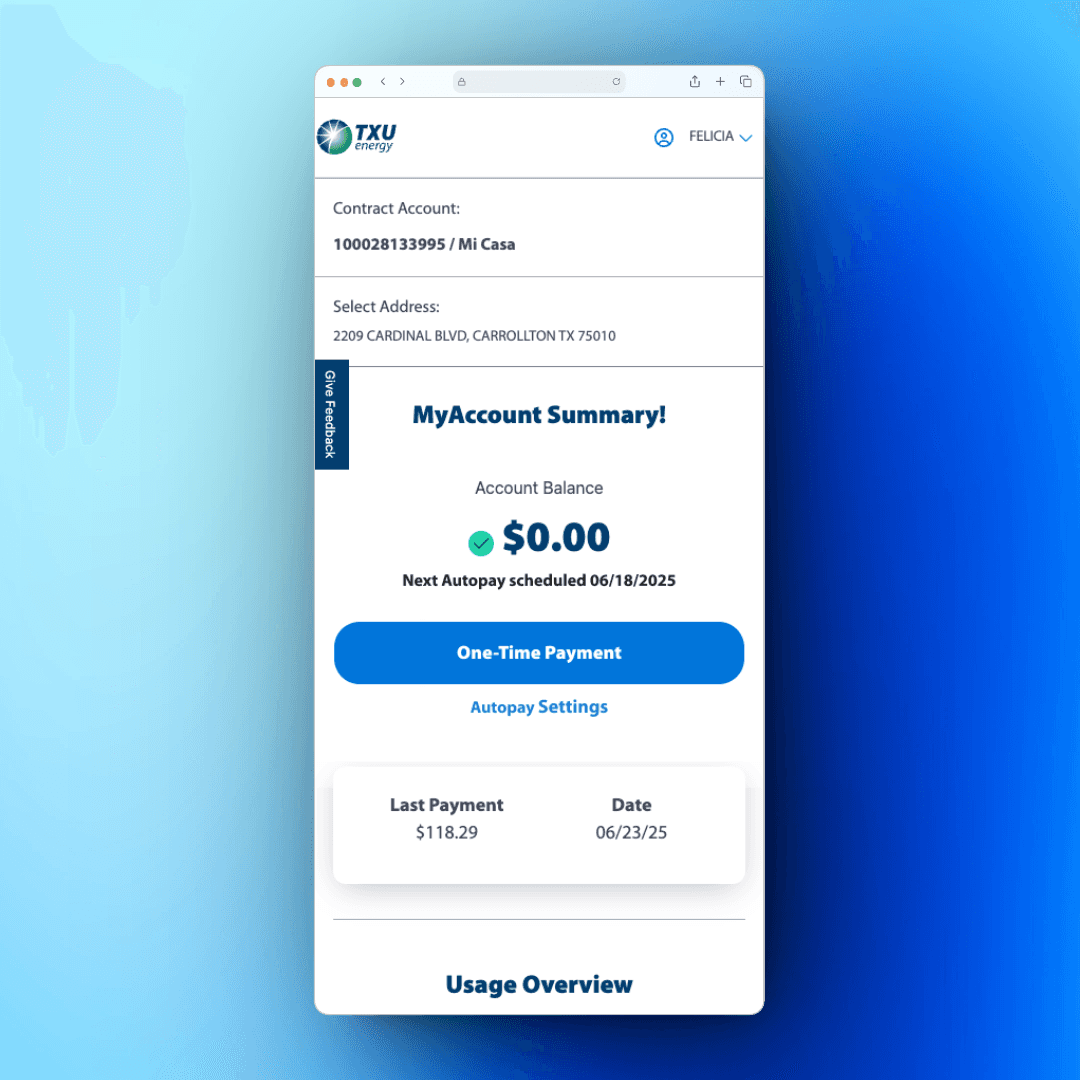
This project focused on redesigning TXU Energy’s Autopay Management experience to improve clarity, reduce user frustration, and provide customers with a seamless way to update or remove their payment methods—especially when a method was tied to Autopay.
Overview.
Many TXU Energy customers struggled to understand which card was being used for Autopay and how to safely change or remove it. The existing experience lacked clarity and didn’t provide guardrails for actions that could lead to payment disruptions.
This redesign introduced a guided, secure process for managing payment methods—especially focused on identifying the Autopay method, updating it with ease, and preventing accidental service interruptions.
Identifying Areas of Improvement.
Make it obvious which card or account is linked to Autopay
Allow users to update or remove payment methods without confusion
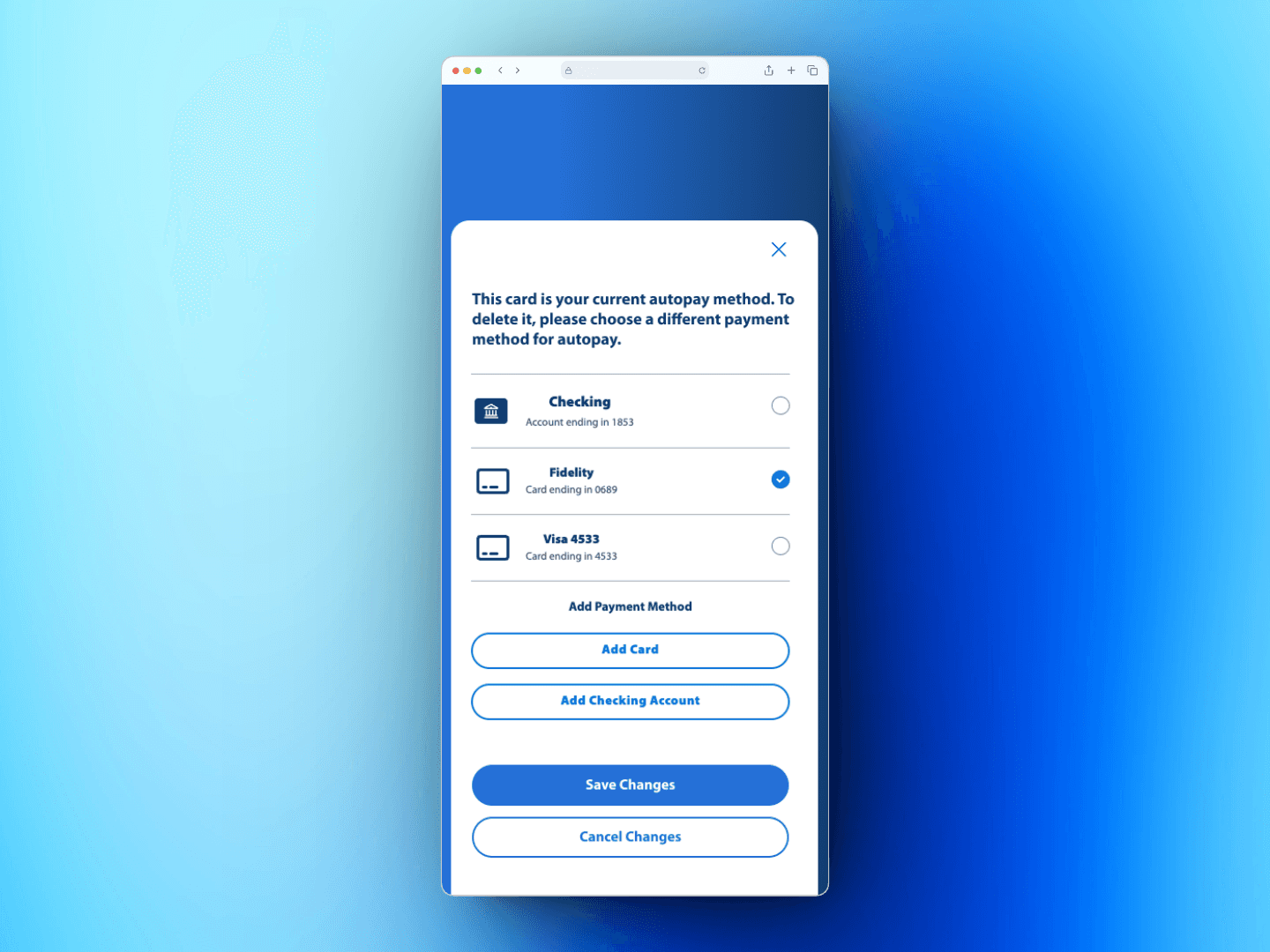
Prevent users from deleting a payment method that is still active for Autopay without choosing a replacement
Create a modal-driven experience for smooth transitions and confirmations
Reduce support call volume related to payment method management
Challenges.
Ensuring payment method changes were secure and didn’t disrupt service
Designing a modal experience that felt native and intuitive on mobile
Creating clear status labels for Autopay without overwhelming the UI
Handling edge cases: what happens when the last payment method is removed or fails?
Educating users through design rather than alerts
My Role.
UX/UI Design Lead for the end-to-end payment method experience
Interaction design of all Autopay-related flows
Partnered with development, compliance, and product teams to ensure secure handling of changes
Design Solution.
We designed an intuitive and protective experience for managing Autopay settings:
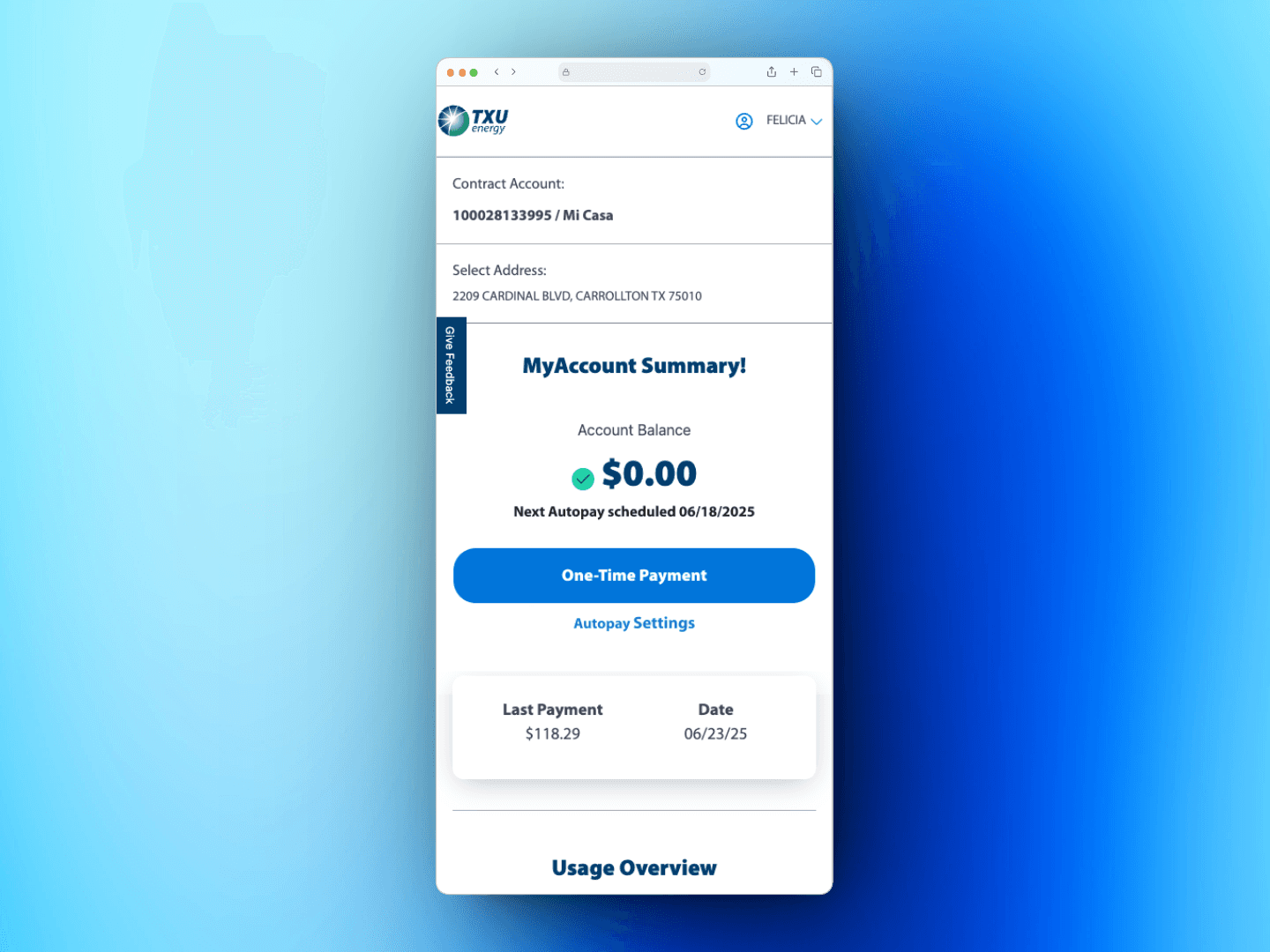
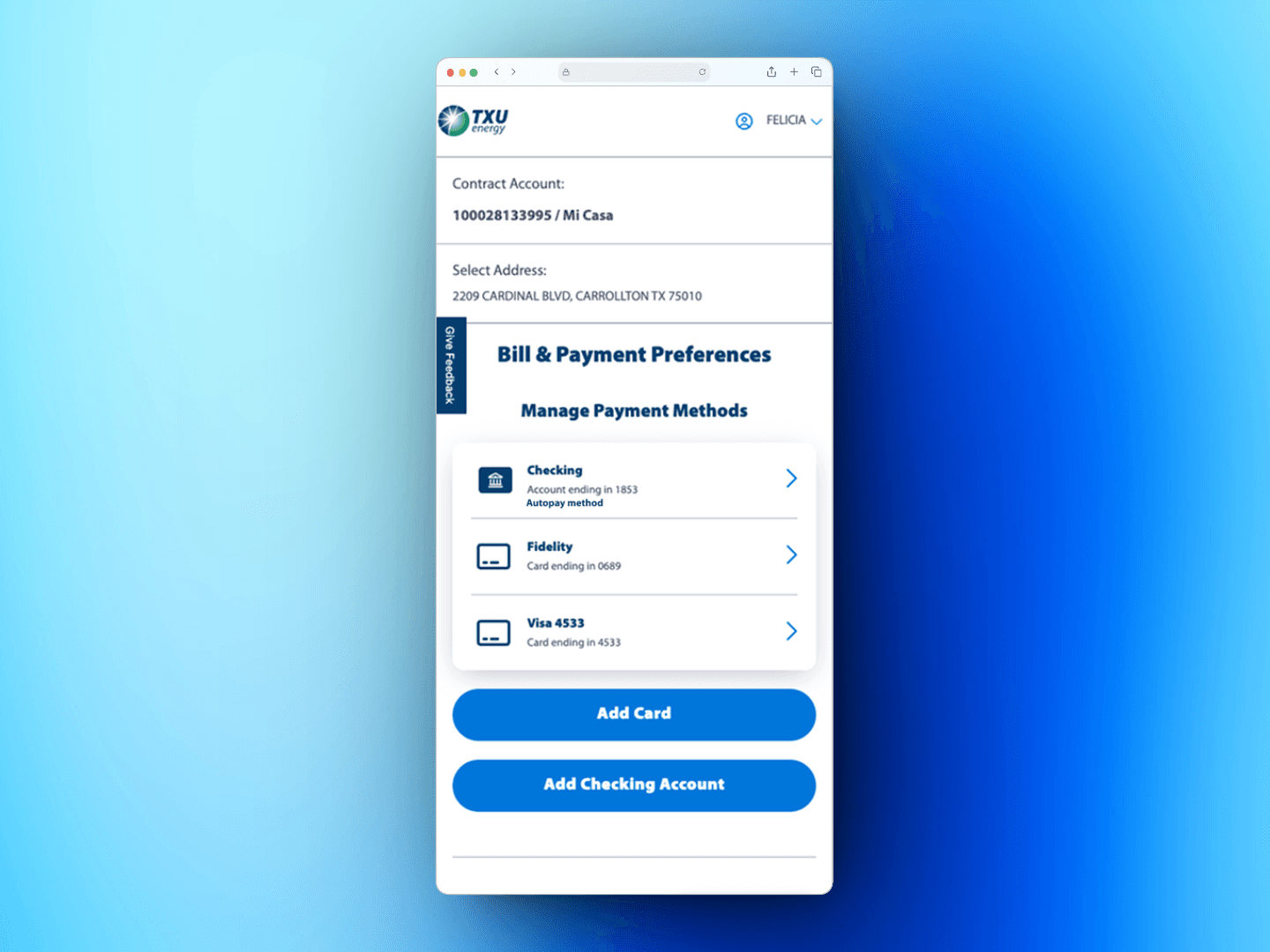
Autopay cards/accounts are clearly labeled
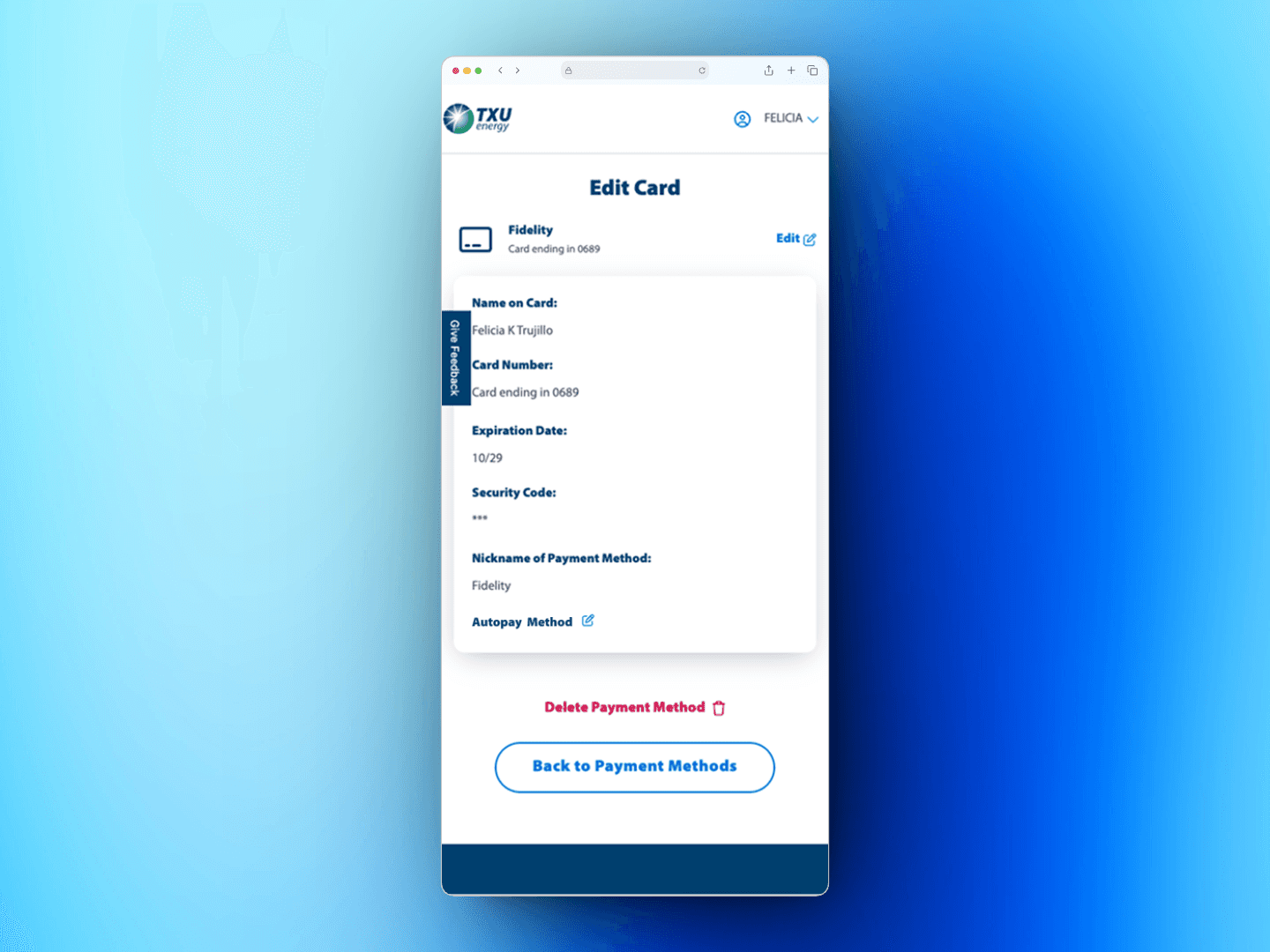
Tapping “Edit” brings users to a focused view of the card details
Selecting "Delete" on an Autopay card triggers a modal requiring a new payment method selection
Users can add new cards/accounts, select a replacement, and save changes seamlessly
CTAs are hierarchically clear with visual distinction for destructive actions (e.g., Delete in red, Save in blue)
Conclusion.
This Autopay redesign gave users clarity and control over one of their most sensitive account features—how they pay.
It eliminated friction, reduced call center load, and most importantly, created trust in the platform by guiding users through what was once a confusing and frustrating process.